
Hey Sonatians,
We thought we would work up a helpful guide to highlight several new and old features that help make universe resets more of a breeze!
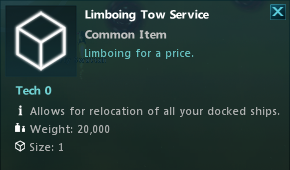
Limboing Tow Service
Every universe players get one /limbo to redock all of your ships if you’ve placed them in a location and need to change your mind. If you’ve used up your free one and require another you can purchase Limboing Tow Service for 5 billion credits at Friedman AI station in Free Market. This will “limbo” all your ships and let you choose a new AI station for them all to be placed at. This can be extremely helpful for moving large storage ships like Thatch that lack an engine.
Item Teleporters
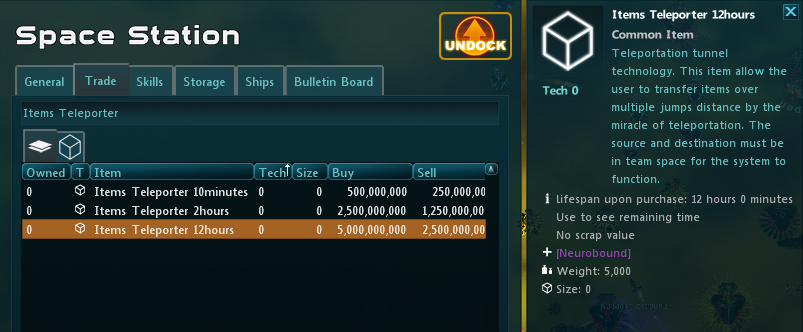
Item Teleporters are station builder’s best friend when packing or unpacking. Located at the Friedman AI station in Free Market for various times and prices. Or if you want a less stressful experience, a 3 day length teleporter is also available in the in-game Store via the Gold Icon at the bottom for Space Points. These useful tools allow for teleportation of items within team space between ships and/or stations (if you’re docked at the station) provided those possessions are also in team-owned space. The item teleporter timer starts immediately after purchase so be prepared to equip it and utilize immediately!
Packing
Buy and equip the Item Teleporter then head to the location of your stations in a galaxy your team has ownership of. Open the Character window and then select the Possessions tab. Find the ship you wish to “store” your stuff in and right click and select Open Inventory. This will open a remote inventory window of the ship. Go ahead, leave that window open and then dock at the station you wish to pack up. Then highlight and drag and drop the items from the station inventory onto the remote ship inventory. This will make the items instantly transfer. Dock to another station and repeat.
Alternately, you can right click on a Station and select Open Inventory in the Possessions tab. It won’t display anything in the window but you can drag and drop the items onto that window to transfer them to that station (again restricted to an owned team galaxy).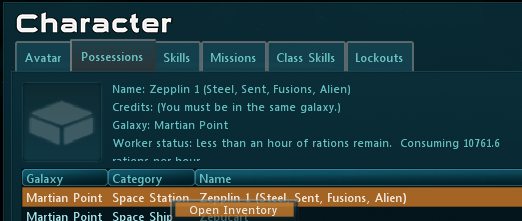
Unpacking
Once you have ownership of a galaxy and laid the Stations in the locations you want for the galaxy, you can purchase and equip the Item Teleporter. Open the Character window and then select the Possessions tab. Find the ship you have your station items in and right click on it and then select Open Inventory. Dock at an appropriate station and drag and drop from the remote inventory window of the ship with your station items onto the station.
Again alternately you can do the same with a a station you deploy strictly to unload your stuff onto for sorting. Unpack the goods onto that station and then you can right click on another Station and select Open Inventory in the Possessions tab. It won’t display anything in the window but you can drag and drop the items onto that window to transfer them to that station.
Trade Bay Import/Export
Trade Bays can be exported or imported during the packing/unpacking process.
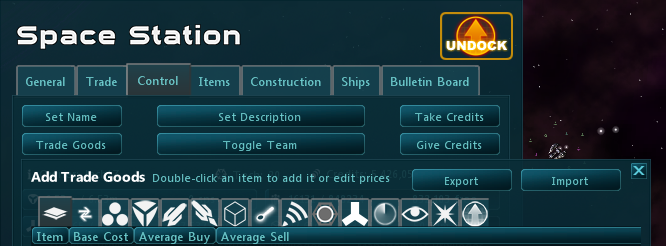
To Export, dock at your Station. Go to the Control tab. Press Trade Goods. Then press Export. This will open a window that allows you to copy paste the text for later importing. Follow the same process but press Import on the Add Trade Goods page when importing your template you’ve previously exported. This can be extremely useful for include things like your shop or a main production station, but also any trade bay that is worth re-using such as a colony or extraction setup.
Transferring Stations and Bots to Characters on the Same Account
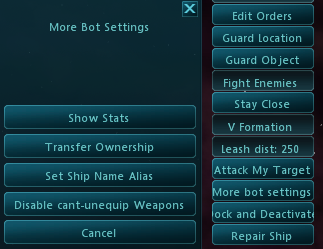
One of the major changes of the last few universes has been the ability to transfer Stations and Bots within the same account! This helps streamline the ability of a player to centralize most of their Station construction builds and supplies onto a single character. To utilize this new feature – select your bot/station and press “X” if the menu below the targeting box is not visible. For stations, Transfer Ownership will be on “X” menu. For bots, you must press More Bot Options and then press Transfer Ownership. You must have a character, on the same account, that you wish to transfer to, offline within the same galaxy for it to be a valid choice, provided the receiving character has sufficient skills and/or slots for the transfer.
Bot Orders
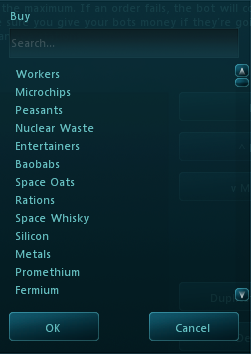
A new search window has been added to help players better sort through the huge commodity lists. This should help players more quickly set buy and sell orders. We also have further improvements regarding orders coming in the near future!
We hope you take full advantage of these tools and enjoy a more efficient and less stressful universe reset experience. Happy packing and good luck in the next universe!